Best Photos for AI Video Generation
Last updated:
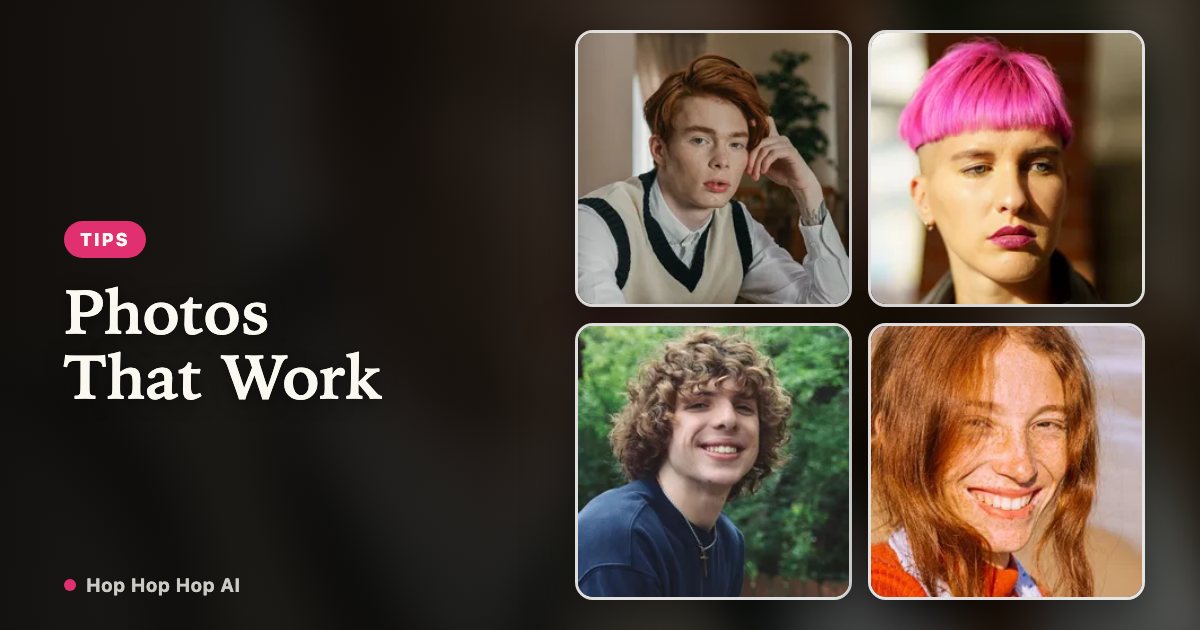
The photo is the only input you control, so it decides most of the result. This checklist is written for the three-hop routine, where the arms matter as much as the face.
Start with the shot the routine needs
The template asks for a pointing gesture and a flat palm pressed toward the background. A tight crop of just a face gives the model no information about the shoulders or arms, and the gesture can look wrong or disappear.
Aim for a chest-up or waist-up shot, straight on to the camera, with both arms visible and a little space around the head. The camera in the output is locked off, so a level, front-facing source photo matches it best.
Sharpness and light
Use the original photo, not a screenshot or a compressed chat image. Check that the eyes are in focus and there is no motion blur — AI video stretches small artefacts across every frame.
Even, soft light is ideal: open shade or daylight from a window. Avoid strong backlight, harsh midday shadows across the face and heavy grain. If the face is half in shadow, the model has to guess what is there.
One adult per photo, both consenting
One person per photo, and you need two of them. Group shots force the model to choose a subject and often produce a blended face. Both people must be adults, and both must have clearly agreed — never a minor, a celebrity or a public figure.
Keep the backgrounds simple. A busy scene gives the model more to reinterpret during the hops, and small details such as text, logos or other faces tend to warp.
What to avoid
These are the inputs that most often lead to a disappointing clip.
| Avoid | What tends to go wrong |
|---|---|
| Sunglasses, masks, face-covering hats | The model invents the hidden features, and they drift between frames |
| Heavy beauty filters or face smoothing | Skin and facial detail become unstable during motion |
| Tight face-only crops | The pointing gesture has no arms to follow |
| Group photos or side profiles | Identity becomes ambiguous |
| Strong backlight or half-shadow | Face shape shifts between the hops and the hard cut |
| Low-resolution screenshots | Blur and artefacts are amplified across the clip |
A quick pre-upload checklist
One adult, facing the camera, with clear permission. Head, shoulders and arms in frame. Eyes sharp and evenly lit. No sunglasses, masks or strong filters. Simple background. Original file, not a screenshot.
If a photo fails two or more of those, pick another one before spending credits — it is cheaper than re-rendering.
File requirements and retention
JPG, PNG and WebP are accepted up to 10 MB. Uploads are private, used only for your render and deleted automatically 7 days after upload; finished videos stay in My videos for 30 days. Deleting your account removes everything right away.
When the result still looks off
Even a good photo can drift during large motions or across the hard cut — that is a limitation of image-to-video models, not necessarily a bad upload. The face consistency guide explains what is happening and what to try next.
FAQ
Can I use a selfie?
Yes, as long as it is sharp, evenly lit and shows your head, shoulders and arms rather than just a tight face crop.
Can I use a photo of a friend or a pet?
A friend’s photo with clear permission is exactly what the second slot is for, as long as they are an adult. Pets, group shots and a third person are not supported.
What file types work?
JPG, PNG and WebP up to 10 MB. Use the original file rather than a compressed screenshot.
Two photos, and the two of you are in it
Create my video