Why Does My AI Video Look Different?
Last updated:
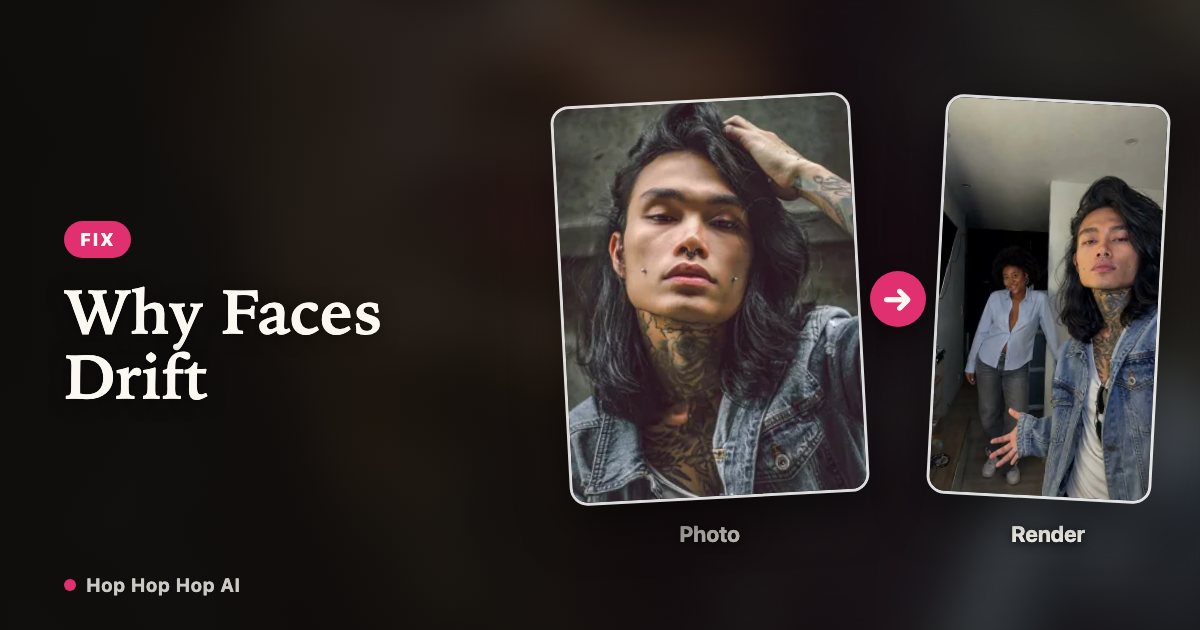
Sometimes the face on the second half of the cut looks slightly different: the hairline moves, glasses shift or a jacket changes shade. That is a known limit of image-to-video models, not a setting you missed.
What people mean by face drift
The model rebuilds the person frame by frame from a single still image. Small details that are obvious to you — an exact hair part, a logo on a shirt, the shape of glasses — are not strongly constrained, so they can wander as the head turns or the arms move.
It is more noticeable on a short loop, because you watch the same few seconds repeatedly, and more noticeable on a face than on a jacket.
Why the hard cut makes it obvious
The three-hop template contains a deliberate cut around the middle that changes the framing. The two halves are generated with slightly different conditions, so any drift between them shows up as a jump exactly where your eye is already looking.
That is why two clips that each look fine on their own can feel inconsistent when you watch them back to back. It is not a stitching error in the download.
The causes you can control
Input quality has the biggest effect. Work through these before assuming the render is broken.
| Input problem | Typical symptom |
|---|---|
| Low resolution or compression | Soft, waxy features that change shape on movement |
| Tight face-only crop | Shoulders and arms appear inconsistently during the gesture |
| Sunglasses, hair over the face, heavy filter | Hidden features are invented differently in each half |
| Harsh side light or half-shadow | Face shape appears to shift across the cut |
| Busy background or a second face | Attention splits and the main subject loses detail |
The causes nobody can control
Video generation is not deterministic: the same two photos rendered twice can produce two slightly different clips. Large motions, quick turns and anything that occludes a face give the model less to hold on to.
We do not offer a face-lock switch, an identity embedding upload or a guarantee of frame-by-frame identity. Any tool promising perfect consistency from two photos is overstating what these models do.
What to try, in order
1. Swap in a sharper, chest-up photo with even light and no filter. This fixes the majority of cases.
2. Remove accessories that cover the face, and pick a simpler background.
3. Render the 6-second version first. Fewer seconds means fewer chances to drift.
4. If you still are not happy, try one more photo. Each successful render consumes credits, so decide from the reference clip and the photo checklist before repeating.
Check before you post
Watch the whole clip once at full size, paying attention to the moment the framing switches. Compare the hairline, glasses and clothing on both sides of the cut. If one face jumps, a sharper photo of that person is a better bet than another render of the same one.
Outfits that read differently at a glance help here too: a small amount of drift is much less visible when the two people are easy to tell apart.
What we do and do not refund
A failed render is refunded automatically. A successful render that you simply dislike does not refund itself, but if the clip has a genuine quality defect, contact support with the job details and we will review it and add credits where appropriate.
FAQ
Can you lock my face so it never changes?
No. There is no face-lock setting. Identity drift is a limitation of generating video from a single still image.
Will a better photo fix it completely?
It removes the most common causes, but it cannot eliminate model-level variation. A sharper, evenly lit chest-up photo is still the highest-impact change.
Do I get credits back if the face looks wrong?
Failed renders are refunded automatically. For a completed clip with a quality problem, contact support and we will review it and add credits where appropriate.
Two photos, and the two of you are in it
Create my video